
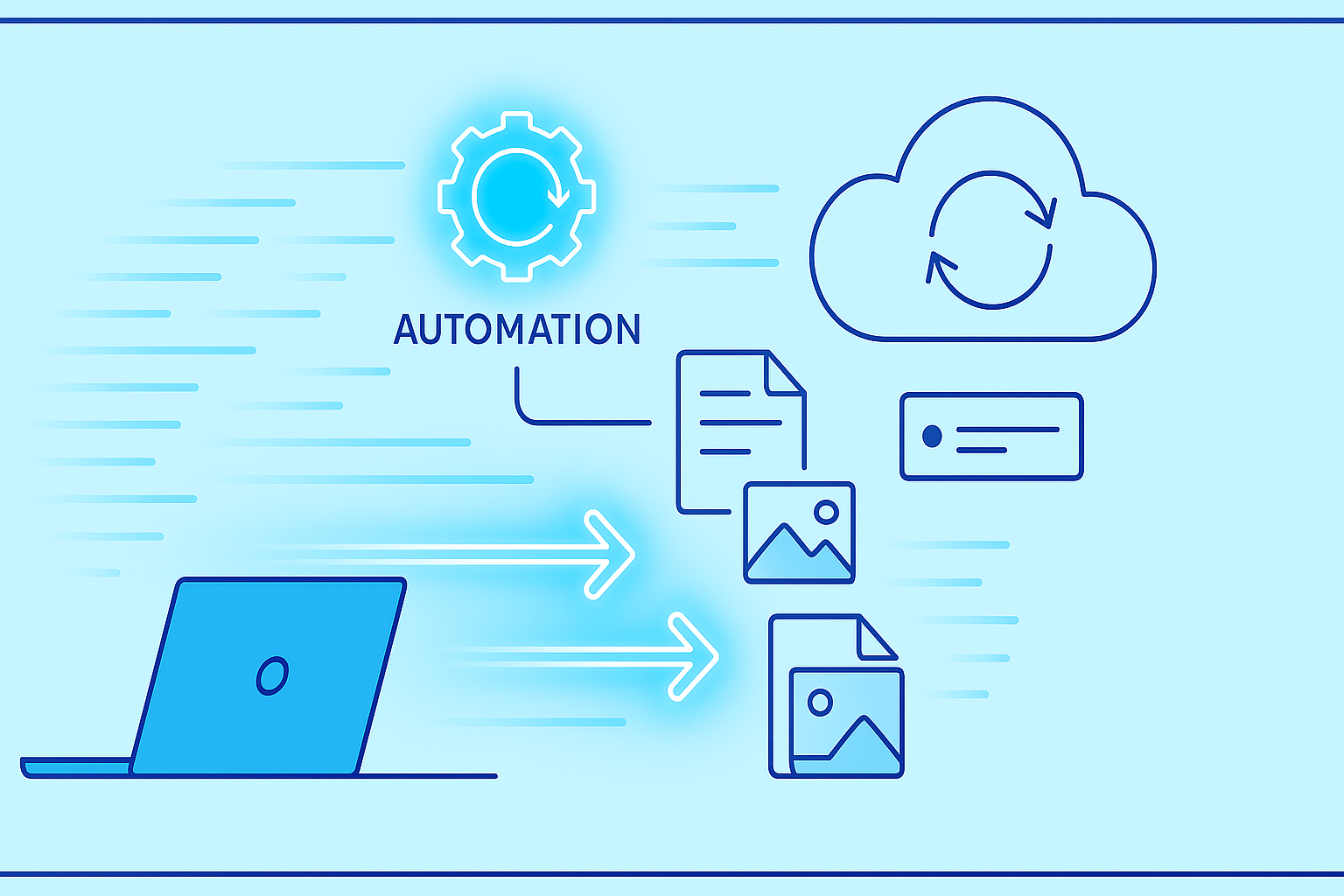
Automating file backups saves time and ensures that important data remains secure. With DDownload, you can easily set up automatic backups so you no longer need to manually upload files each time.
Benefits of Automated Backups
- Time-saving: Once configured, backups run in the background automatically.
- Data protection: Files stay safe even in case of computer crashes or accidental deletions.
- Easy management: Manage multiple projects or devices from a single account.
Steps to Set Up Automatic Backups
- Prepare your account: Make sure you have enough storage and a Premium or Business account.
- Select backup folders: Choose which folders you want to back up regularly.
- Set your backup schedule: Decide on frequency (daily, weekly, monthly) and preferred time.
- Enable notifications: Get updates on successful backups or any errors.
Tips for Optimal Use
- Combine automated backups with version control to retain older versions of your files.
- Check your storage limits regularly to avoid interruptions.
- Use DDownload’s encryption options for sensitive files to maximize security.
| Feature | Benefit for Automated Backups |
|---|---|
| Scheduled Backups | Files are backed up automatically |
| Cloud Storage | Access your data anytime |
| Notifications | Immediate updates on backup success or errors |
| Version Control | Retrieve previous file versions |
Conclusion
Automating backups with DDownload reduces the risk of data loss and ensures smoother workflows. For large projects and professional media files, you can also enhance your workflow by following tips in our guide on using DDownload for large media and professional projects to make file management even more efficient.


